The industrial revolution of the late 19th century produced economic “winners and losers” as it transformed American society from a traditional agricultural economy to a modern industrial power.
The period between the Civil War and WWI saw tremendous industrial and commercial expansion. Throughout the 19th century, Americans had faith in the idea of progress, and many people viewed this economic growth as evidence of the superiority of the American system. But while increased production did improve the general standard of living, industrialization concentrated wealth and power in the hands of a few “captains of industry.”
For the millions of Americans who worked in the new factories and mines this economic revolution meant long hours, low wages and dangerous working conditions. As new technologies and economic growth impacted every aspect of American society, it created both new opportunities and greater social divisions between rich and poor.
Edtech guru, Kathy Schrock defines screencasting as “the capture of the action on a computer screen while you are narrating. Screencasts can be made with many tools and are often used to create a tutorial or showcase student content mastery.” A related practice is slidecasting (creating a PowerPoint or Apple Keynote slideshow and then screencasting your narration of it as it plays on the screen). Here’s my Keynote turned video.
Keep it simple. Think of audience and purpose. See One Take Video
I favor taking complex instructions and turning them into multiple shorter videos covering specific aspects of the task. Some students know one thing and not another. Why make them sit through a long how-to.
I use a plug in mic (just a standard iPhone earbud mic works well) rather than the microphone built into my Mac. I do a quick test screencast to check the volume level and mic position first to get sound level right.
I first practice the skill a few times to find efficient ways to demonstrate and describe what I am doing.
If I will be entering much text as part of the task, I create a text document first so I can copy/paste text into the app I’m demonstrating ( I hate watching videos of people typing.)
I make sure any images, websites or other content I will use in the video are readily available.
I try and do the screencasts in one take. I don’t worry too much about flubbing words – hey, it’s only a screencast.
Three options for teaching with video – there are many more
Option 1: Screencast with “Loom.” An easy to use Chrome browser plug in – works on any computer or Chromebook. Your video is hosted at Loom.
Loom is a free Chrome browser plug in. To get Loom open your Chrome browser and get the Loom extension here. It makes it super easy to record using your webcam, screen or both. The resulting video can be embedded into a blog or shared via email or social media. A great way to explain something in a visual way.
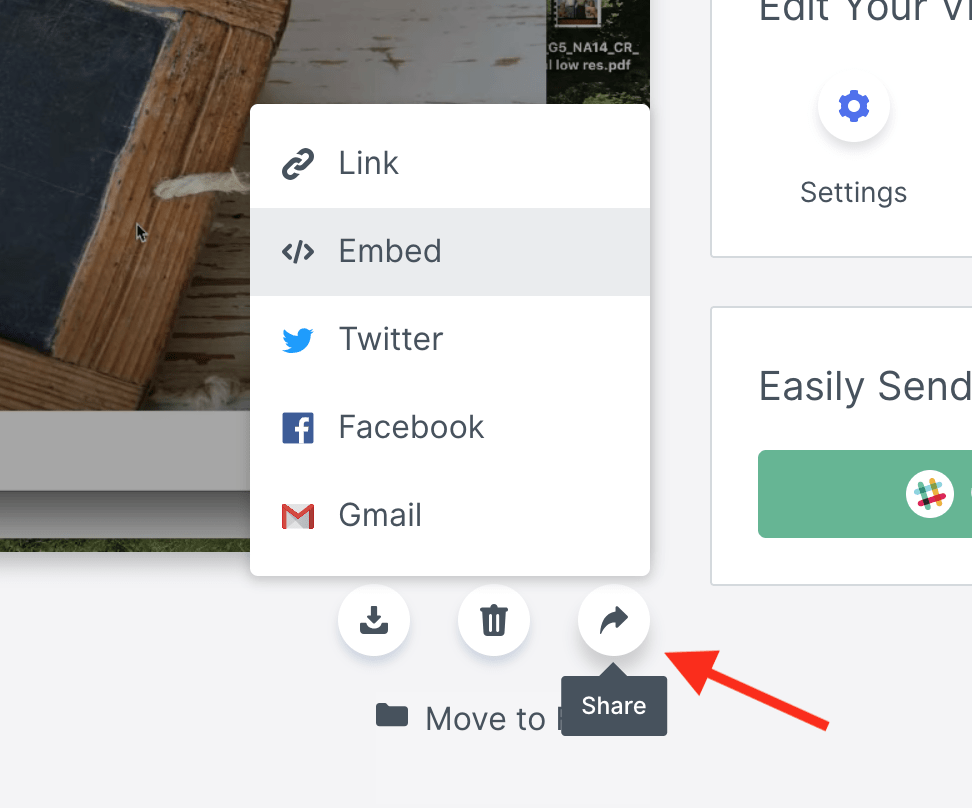
Note: Since making this video the embed code is now found by clicking the curved Share Arrow at lower right of video. Then pick </> Embed
Option 2: Screencast with Quicktime Player (easy and built into Macs). But if you want to post on blog, you need to “host” the video on YouTube.
I typically use Quicktime Player, which is built into the Mac OS. It’s easy to use and quickly uploads to my YouTube account. Here’s a screencast I made on how to use Quicktime Player to make a screencast. (very meta)
Option 3 – Turn someone else’s video into a lesson
First off – a quick nod to ViewPure – an easy way to share video content with students without “risking” related sidebar content. Click here to “purify” a video.
Here’s two useful video lesson builders.
TEDed – build a lesson around any TEDed original, TED talk or YouTube video. Note you cannot embed a TEDed lesson. So you could get a screenshot and provide a hyperlink.
EdPuzzle – Pick a video, add your magical touch and track your students’ understanding. Create an EdPuzzle account, then turn an existing video into a lesson. You can share the result with an embed code.
Assignment 3: Use video to support a lesson | Completed work
Student’s will use class time to design and create a video supported activity using any of these tools. They will use HTML Snippets (on WordPress) to embed it in a blog post.
Then in your blog post briefly describe:
Audience and purpose: For example, is this to help parents with homework?
How you would integrate it into your lesson: For example, the 1st day of class, I created time to meet individually by using screencast for Adobe Spark Post and WordPress instruction.
Remember, if you use Quicktime Player, they should plan to load it up to your YouTube account. If you use Loom the video hosting is taken care of.
How to use HTML Snippets to Embed External Content on the blog
Quite often edtech tools are used by the teacher rather than the students and don’t do much more than make things prettier. Think: Teacher at Smartboard as replacement for the overhead.
New digital technologies allows us to “see” information in new ways. Think: Students analyzing a text using Wordle
History and other humanities that tended to be strictly narrative are leveraging data collection and display tools to spawn a new digital / data approach to teaching history and social science.
See Digital Humanities Projects at Stanford
Many apps and websites can be a great tool to introduce the research method – form a hypothesis, gather and analyze data, revise hypothesis (as needed), draw conclusions, assess research methods. Working in teams students can easily pose research questions, run the data, revise and assess their research strategy. Students can quickly make and test predictions. They can then present and defend their conclusions to other classroom groups. All skills called for by the new Common Core standards.
In today’s class we will explore a sampling of free online data visualization tools that can be used in the classroom. Students will be asked to incorporate one of these tools into a lesson design.
NGram Viewer – online research tool that allows you to quickly analyze the frequency of names, words and phrases -and when they appeared in the Google digitized books. For more advanced searches using NGram Viewer click here.
Google Trends – see how often specific keywords, subjects and phrases have been queried over a specific period of time.
Choose one or more of these digital tools (or use a favorite of yours) and blog about how you would use it in an activity, lesson or unit. Be sure you focus on an idea that allows your students to be using the tool. Be sure to link to the tool and include a screen shot. If the digital tool allows results to be embedded in the blog. Here’s how to use HTML Snippets.
Image credits:Teaching with a SMART Board / Flickr
I admit to being guilty of dominating classroom discussion as a rookie social studies teacher. “Class, what were three results of the War of 1812? … Anyone? … Anyone??”
After years of facing this type of discussion, students learn that their comments are of provisional value until “approved” by the teacher. Over time, students stop listening to each other and only focus on what the teacher says or validates – “will that be up on a test?” When students are put in small group discussion, they rapidly get off subject. With no teacher to validate their comments, they naturally gravitate to other subjects where peer comments are valued – “what are you doing this weekend?”
How to lead a conversation that builds student understanding
Today’s class will explore strategies and resources for taking the teacher out of the role of information gatekeeper and encouraging productive student-centered dialogue. In class we will try three different approaches to classroom discussion.
“Structured Academic Controversy” (SAC) model. Not all issues can be easily debated as pro / con positions. SAC provides students with a framework for addressing complex issues in a productive manner that builds their skills in reading, analyzing, listening, and discussion. It shifts the goal from “winning” the argument to active listening to opposing viewpoints and distilling areas of agreement. We will try Was Abraham Lincoln a racist? 251kb PDF. You might consider using the SAC process with my series “Great Debates in American History“